Azure Sentinel 2. Incidents + Google - VirusTotal Code Insights Integration
- Michael He
- Oct 9, 2025
- 2 min read
Updated: Oct 10, 2025

Sentinel Setup
Logic App Setup
Playbook we are going to use by Koos Goossens:
In this article I’ll demonstrate how to leverage VirusTotal’s services to automatically scan all of your file hashes and IP addresses that come through Microsoft Sentinel as entities in their respective incidents. The scan results are then automatically attached to the security incidents so that your analysts see the reputation and other details in an instant, without having to go out and retrieve this information themselves.
Logic App Overview: we are going to change a couple of things here

Obtain VirusTotal API Key

Note, this wouldn't work for production without upgrading it to enterprise. For our testing purpose, this is perfectly fine.


Enable Logic App Identity


Do the same things for the following -


RBAC Assignment: assign responder role to the RG (at resource group level)


Now let's trigger the playbook against an incident


Playbook-VirusTotal-Incident-AI-Enrich
Oct 4, 2025 9:23 PM
Virustotal logo
IP address: 17.81.146.1
Detection
Harmless	Malicious	Suspicious	Undetected
62	0	0	33
'harmless' : site is not malicious
'undetected' : scanner has no opinion about this site
'suspicious' : scanner thinks the site is suspicious
'malicious' : scanner thinks the site is malicious
Community Score
Malicious	Harmless
2	0
Details
Network	17.0.0.0/9
ASN Number	714
ASN Label	APPLE-ENGINEERING
Regional Internet Registry	APNIC
Country	CN
Continent	AS
[Full report](https://www.virustotal.com/gui/ip-address/17.81.146.1)
Simulate malicious file:
Import this analytic rule: ___

Click Edit > Set rule logic > View query results

Select line 1-23, and Run query

Not all files types are supported as of right now. Check supported file type here: https://docs.virustotal.com/docs/codeinsight-supported-files#:~:text=These%20are%20the%20file%20types,%2C%20XLS%2C%20XLSX%2C%20ZIP


Let's pick a docx file for now

Copy the hash and check VirusTotal against it:
i.e. d3e0384fc1e932671fcf881ca900b746195910aa4b60b390e86bb8305b542247

Now, go back to the rule, and replace the hash with the one you just spotted

Rerun query (including every query this time), and you will find the malicious alert

Review + create > Save
The rule will run every 5 minutes, so wait a little bit and check back incidents

Modify the Logic App
Add some variables:


We actually need to choose data from "VirusTotal | Retrieve information about a file" step, but we do not have that option so let's choose "FileType" for now and we can change it via "Code view"
Save the Logic App and click "Code view"
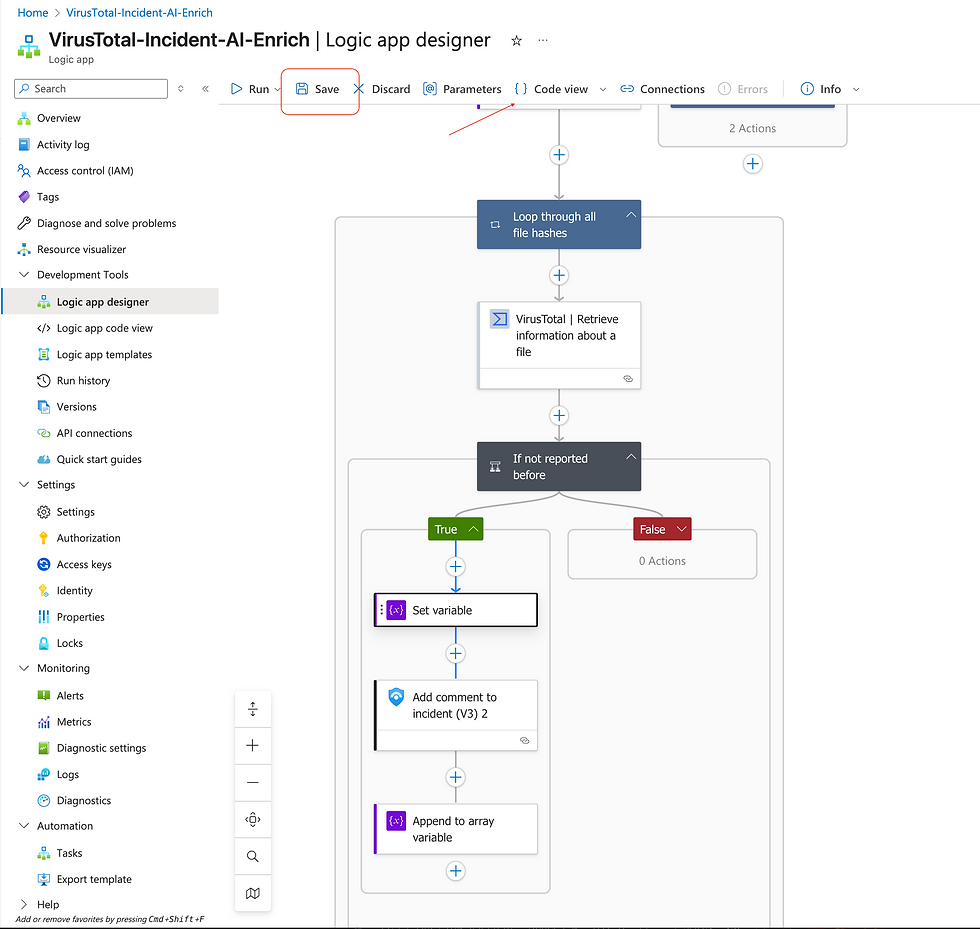
Find "set variable" section > change the "Filetype" to "data" > Save > go back to Designer view

Add a condition

Add another set variable

For the value, paste this in -
@{body('VirusTotal_|_Retrieve_information_about_a_file')?['data']?['attributes']?['crowdsourced_ai_results']?[0]?['analysis']}Modify the comment:
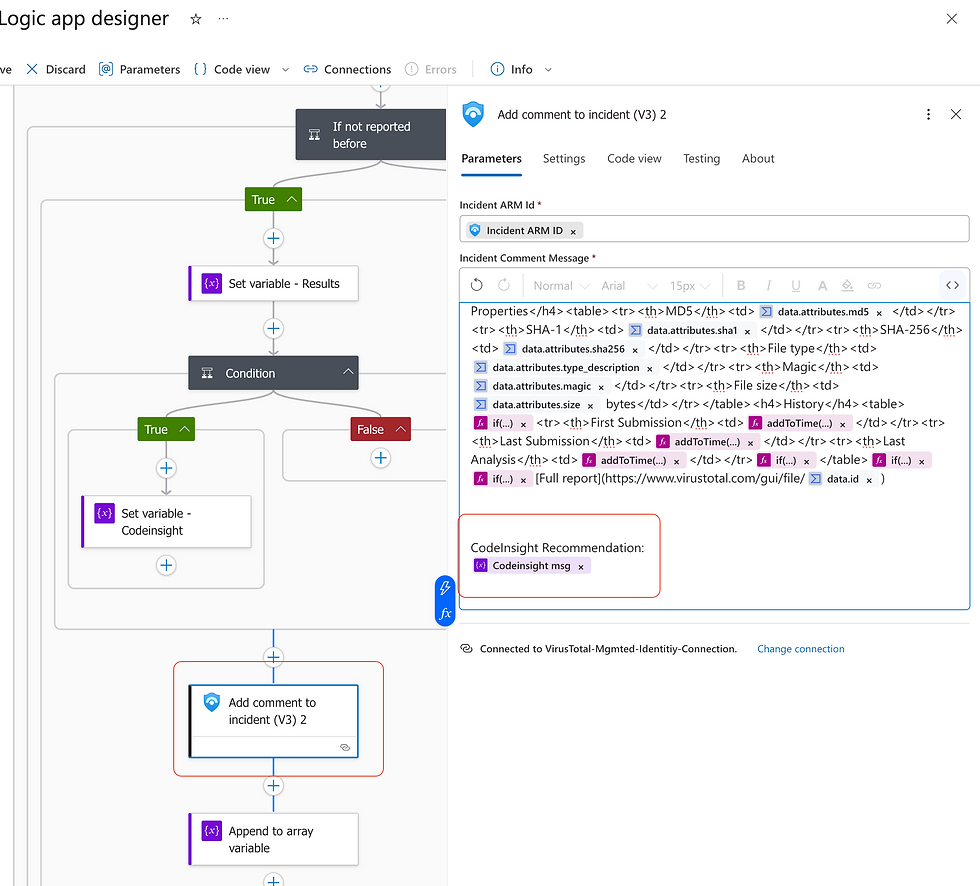
Save and run playbook against the incident again


Comments